Devices
Record with Sudo, Dex or Glyph, and Italic turns each recording into a Clip or a Memo.
Italic makes three recorders of its own: Sudo, Dex and Glyph. The Italic app on your iPhone brings each recording over Bluetooth, turns it into text and files it on Home.
Italic also officially supports 3rd Party Devices from other makers—both direct-Bluetooth devices and boards running Italic Live firmware—lets Custom Devices send recordings through the API, and lists your Macs under Computers. For the complete filterable matrix and machine-readable JSON feed, see Device compatibility.
The devices
- Sudo is a ring. Press and hold it to record a quick thought, then let go. Tap gestures can record longer Memos.
- Dex is a recording card. Press its record button to start, and press it again to stop and save.
- Glyph is an e-ink device with buttons for Clips and Memos. Glyph isn't available to customers yet.
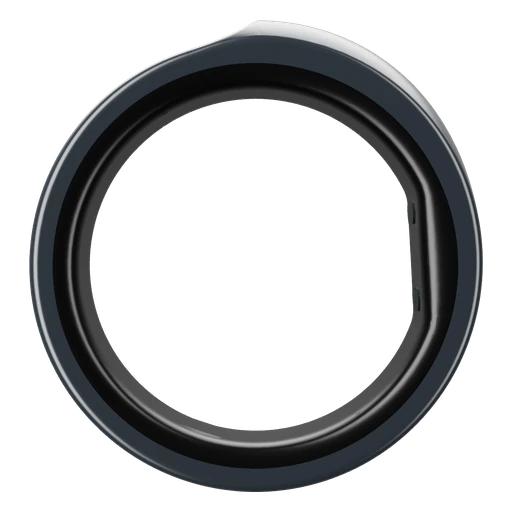
Sudo
Press-and-hold ring with charging-dock wake and automatic firmware updates.
- Default controls
- Press and hold → Clip (0.25 s) · Tap gestures off until enabled
- Audio & sync
- Stored on Sudo, synced over BLE to iPhone
- Setup & updates
- Pair over Bluetooth in iPhone Add device → Sudo
Battery and recording
| Device | Battery life | One recording | Charging |
|---|---|---|---|
| Sudo | About 2 to 3 days of everyday use | No time limit | Under 1½ hours |
| Dex | Up to 28 hours | 1 hour out of the box (up to 4), then a new one starts | About 1½ hours |
These are estimates. Each device's page has the details: Sudo and Dex. Glyph's figures will be added once they've been measured.
How recordings reach Italic
Only the Italic app on iPhone talks to your devices, over Bluetooth. Sudo, Dex and Glyph save audio on the device and transfer it when your iPhone is near. Italic:
- copies the recording from the device;
- transcribes it on your iPhone;
- files it as a Clip or a Memo;
- syncs the text to your account, so it appears in the web app and Italic for Mac too.
Audio isn't uploaded. Source audio stays on your iPhone under Keep recordings. The next iPhone build extends this to Clips and preserves audio on conversion. Italic sends a notification when a recording from a device is ready. To turn this off, turn off New clips and memos in Profile → Notifications.
Devices groups everything saved to your account into sections: Italic for Sudo, Dex and Glyph, Computers for Macs running Italic for Mac (Computers), Mobile for iPhones running Italic, and 3rd Party (including Custom Devices) for supported hardware from other makers (3rd Party Devices).
Macs
Install Italic for Mac 0.4.3 or later and sign in to the same Italic account. Your Mac appears automatically under Computers on Devices (Computers), where Italic for Mac 0.5.0 and later can also run tasks with Codex or Claude Code. Each Mac is listed as its own line item, even if two computers have the same name. You can rename or remove it from any of your devices. Removing a Mac keeps its Italic app signed in; reopening the app keeps the entry removed until you choose Save to account again on its page in Removed devices.
On iPhone, Add device → Computers → Mac shares the download link to open on your Mac. A Mac connects through the app installed on it, so its device page explains that connection and has no Bluetooth pairing controls.
Add a device
In App 342 and later, a new account's Home also shows an Add a device card; its Add opens the same list as these steps.
Open Profile
In the Italic app, open the Profile tab, the one with your photo. Your saved devices are listed below the settings, with Add device under them.
Choose your device
Tap Add device, then choose Sudo, Dex or Glyph. For supported hardware from Core Devices, FoloToy, Waveshare, M5Stack or Espressif, choose 3rd Party instead (3rd Party Devices); for a device of your own, choose Custom device at the bottom of 3rd Party (Custom Devices)—or search for your device name, and Custom device appears automatically when no built-in device matches.
You can also connect a device during the Italic app's first-time setup. Each saved device has its own page, with its battery, sync status, recording settings and Activity log.
Clip or Memo
Every recording is one or the other:
- A Clip is a quick thought, with a transcript. Updated clients also keep its source audio locally.
- A Memo is a longer thought, with a title, a summary and the transcript. Its audio stays on your iPhone, so you can play it back.
Each way of starting a recording has a type out of the box. On Sudo and Dex, you can change it on the device's page. Glyph's mic button sets the type itself:
| Device | Input | Out of the box |
|---|---|---|
| Sudo | Press and hold | Clip |
| Sudo | Double tap, Triple tap | Off until you turn them on |
| Dex | Record button | Memo |
| Glyph | Hold the mic button outside Chat | Clip |
| Glyph | Triple-click the mic button | Memo |
On Glyph's Chat, hold Mic to ask Italic and release to send. Use Home to record a Clip. Supported 3rd Party Devices have the same Clip and Memo choices on their device pages.
A change applies to new recordings only. Recordings you already have keep their type. You can move a recording between Clip and Memo later. Source audio stays on the iPhone that imported or recorded it under Keep recordings. For developers, the same choices are available through the API: Device settings.
Short recordings
Each device page has Auto-delete shorter than, which discards accidental recordings. New devices default to 2 seconds. Choose Off to keep everything, or a cutoff from 0.5 to 5 seconds. It applies to new recordings only.
Your devices follow your account
Your saved devices and their names belong to your Italic account, not to one iPhone. This works while Cloud Sync is on: Profile → Personalization → Cloud Sync → Sync to your account, which is on by default.
- Rename a device with the pencil button on its page. The new name shows on your other iPhones and on the web app's Devices page, and on the recordings that device made.
- On the web, open Devices in the sidebar to see the same list. To remove a device, open it and choose ⋯ → Remove from account…. It leaves your iPhone's list too, and its recordings stay on Home.
- A device you remove moves to Removed devices, a row below your devices that opens a page of its own, on iPhone and on the web. Its recordings keep its name. Open it there and choose Save to account again to bring it back.
- If you rename a device on two phones while one is offline, the iPhone asks whether to Keep my name or Use account version.
On a new iPhone
Sign in to the Italic app on the new iPhone. Your devices are already listed on the Profile tab, each with Connect on this iPhone. Keep the device nearby and tap it. You don't need your old phone. The Bluetooth connection is set up on each iPhone, so a device you haven't connected yet shows no battery or live status. Each device page explains the details: Sudo, Dex and Glyph. Supported 3rd Party devices can also be paired from their pages (3rd Party Devices).
Sudo
The ring you press and hold to record a Clip.
Dex
The recording card that syncs to your iPhone.
Glyph
The e-ink recorder with buttons for Clips and Memos.
3rd Party Devices
Direct-Bluetooth hardware (Pebble Index 01) and 13 boards from FoloToy, Waveshare, M5Stack and Espressif running Italic Live.
Custom Devices
A device of your own that sends its recordings through the API.
Computers
Send tasks to Codex and Claude Code on your Macs.